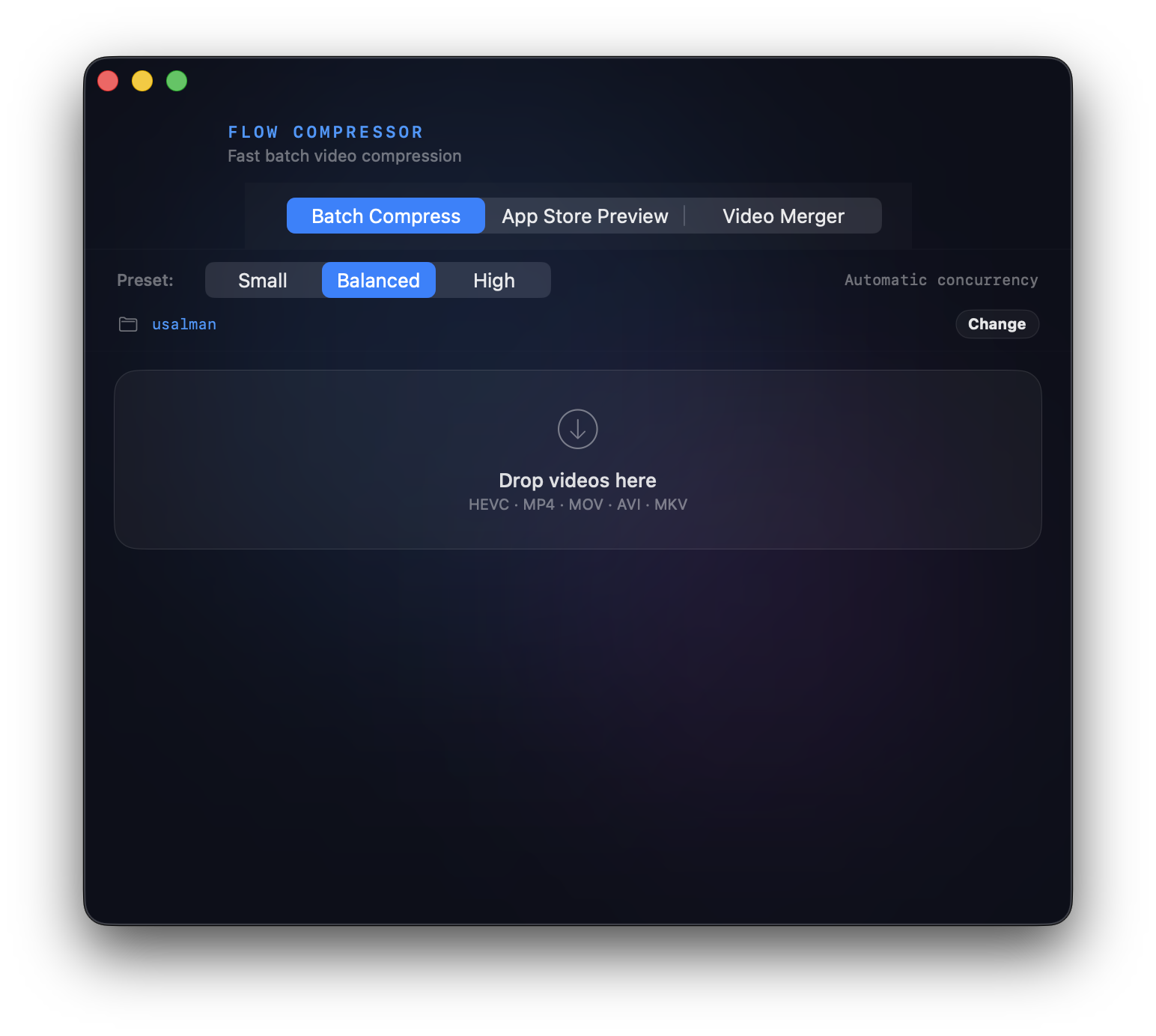
Batch Compress is the default workflow: drop files, choose quality, choose the processing mode, and export one output per input.
Workflow Model
The Four Workspaces
Batch Compress
Compress multiple videos with Small, Balanced, or High quality presets. Each input produces its own output file.
App Store Preview
Prepare App Store Connect-ready previews with timing, size targets, and audio handling in one workflow.
Video Merger
Join clips in order. Hard Cut is direct and fast; Crossfade creates smooth transitions when using a broader processing mode.
AI Recipe
Describe an edit in plain language, review the generated recipe, then run only after validation passes.
Batch Compress
Use Batch Compress when the goal is one smaller output file for each selected input. Choose a preset, choose the processing mode, drop files, and run the batch.
| Control | Meaning |
|---|---|
Small | Prioritizes file-size reduction. |
Balanced | Good default for everyday compression tests. |
High | Preserves more visual detail with larger output files. |
Importing Files
Files can be added from the UI or from AI Recipe prompts. This matters because FlowCompressor is built around selected input clips, not hidden media libraries.
Drop or Pick Files
Drag videos into the active workspace, use file selection controls, or choose an output folder before exporting.
Prompt Import
AI Recipe can import prompt-referenced files, for example Import elias_*.avi from the Desktop.
Add More Videos
The AI Recipe input area accepts additional clips after a recipe is generated, so users can expand or retry the input set.
Remove Files
Remove Files clears AI input clips without clearing the prompt, which is useful for testing the same recipe on different videos.
App Store Preview
Use App Store Preview when the output must be ready for App Store Connect. The workspace combines 30 fps timing, device-size selection, scaling, and AAC stereo audio preparation. If a source has no audio, Flow Compressor adds a silent audio track so users do not have to chain separate export steps.
First 30skeeps the start of the clip.Speed Up (30s)compresses a longer preview into the required time.- Device targets select Mac, iPhone, or iPad preview dimensions.
AI Recipe can route App Store Preview prompts into the same preview-safe pipeline. Use the App Store Preview tab for direct controls, or AI Recipe when the user wants to describe the target in words.
Video Merger
Use Video Merger when several clips should become one output. Clip order follows the selected/imported order shown in the list.
| Strategy | Behavior |
|---|---|
Hard Cut | Places clips end to end with no blend. Apple Native supports compatible and normalized hard-cut output. |
Crossfade | Blends between clips. Use Standard or Hardware for this path. |
AI Recipe Workspace
Use AI Recipe when the edit is easier to describe than configure manually. The app turns the prompt into a structured recipe, displays the planned steps, and checks whether the selected processing mode can run them.
Ask AIanswers questions without creating a runnable recipe.Generatecreates or refreshes the recipe card.Runis enabled only when inputs, validation, and selected processing mode allow execution.Remove Filesclears imported AI input clips without changing the prompt.
AI App Store Preview Recipes
When a prompt mentions App Store Preview, App Preview, or App Store Connect video, Flow Compressor uses a dedicated preview recipe instead of a generic recipe or custom Advanced media plan. This keeps Recipe and Advanced aligned for the same App Store Preview goal.
| Requirement | Behavior |
|---|---|
| Inputs | Uses one selected source video. |
| Video | Exports H.264 MP4, 1920x1080 for Mac, maximum 30 seconds, progressive, constant 30 fps. |
| Audio | Keeps source audio when present. If the source has no audio, adds silent AAC stereo at 44.1 kHz. |
| Output name | Uses the _appstore_ai.mp4 suffix. |
Recommended test prompt:
Create an App Store Preview compatible MP4 from the selected video: export H.264 MP4, 1920x1080 for Mac, maximum 30 seconds, constant 30 fps, progressive video, AAC stereo audio at 44.1 kHz, keep source audio if present, otherwise add a silent stereo audio track.
Working With Multiple Movies
When several movies are imported into AI Recipe, the wording of the prompt decides whether FlowCompressor creates separate files, one sequential timeline, or one shared frame where clips play at the same time.
| Prompt Style | Result | Example |
|---|---|---|
each selected video | One output file per imported movie. | Compress each selected video as balanced H.264 MP4. |
join, merge, current order | One output file where movies play one after another. | Join all selected clips in the current order with hard cuts and export H.264 MP4. |
side by side, split screen, vertical stack, 2x2 grid | One output file where multiple movies are visible simultaneously. | Put the two selected videos side by side and export H.264 MP4. |
Use Standard or Hardware for side-by-side and grid layouts. Apple Native is focused on supported native exports, hard-cut joins, and one-input or per-input AI edits.
Prompt Examples
| Goal | Prompt |
|---|---|
| Separate outputs | Compress each selected video as balanced H.264 MP4. |
| Sequential hard cut | Join all selected clips in the current order with hard cuts and export H.264 MP4. |
| Sequential crossfade | Join all selected clips with a 1 second crossfade and export H.264 MP4. |
| Two-up split screen | Put the two selected videos side by side, fit each video inside its half, use the shortest duration, mix audio, and export H.264 MP4. |
| Vertical stack | Stack the selected videos vertically in one 1080x1920 H.264 MP4, fit each clip, use the shortest duration, and mix audio. |
| Four-up grid | Create a 2x2 grid from all selected clips, crop each clip to fill its cell, mute audio, and export H.264 MP4. |
| Three across | Put three selected videos in one horizontal row, fit each video inside its cell, use the shortest duration, and export H.264 MP4. |
Grid Layouts
Grid layouts place several imported movies into one shared video frame so they play at the same time. This is different from a merge: a merge plays clips one after another, while a grid shows clips together.
Use Standard or Hardware for side-by-side and multi-cell grids. Apple Native is not the recommended mode for this layout type.
| Term | Meaning |
|---|---|
| Grid shape | The row and column layout, such as 1x2, 2x1, 2x2, or 1x3. |
| Canvas size | The size of the final output video, such as 1600x1440 or 3200x2880. |
| Cell size | The size of each grid slot. A 2x2 grid on a 1600x1440 canvas creates four 800x720 cells. |
| Fit | Preserves the whole input frame. If the input shape does not match the cell shape, empty padding can appear. |
| Fill / crop to fill | Fills the cell completely. This removes padding but may crop the edges of the video. |
| Duration | shortest duration stops the grid when the shortest clip ends. |
| Audio | Use mute audio, mix audio, or the first clip's audio. |
Canvas size matters. If source movies are 1600x1440 and the app creates a default 1920x1080 grid, each 2x2 cell is 960x540. That shape mismatch forces the app to shrink the movie into a wide cell, which can create large side bands.
| Source / Goal | Prompt |
|---|---|
| Downscaled 2x2 for 1600x1440 sources | Create a 2x2 grid from all selected clips on a 1600x1440 canvas, fit each video inside its cell, use the shortest clip duration, mute audio, and export H.264 MP4. |
| Full-size 2x2 for 1600x1440 sources | Create a 2x2 grid from all selected clips on a 3200x2880 canvas, fit each video inside its cell, use the shortest clip duration, mute audio, and export H.264 MP4. |
| Two videos side by side | Put the two selected videos side by side on a 1600x720 canvas, fit each video inside its half, use the shortest duration, mix audio, and export H.264 MP4. |
| Vertical stack | Stack the selected videos vertically on a 800x2160 canvas, fit each clip, use the shortest duration, and mute audio. |
| Fill a widescreen grid | Create a 2x2 grid from all selected clips on a 1920x1080 canvas, crop each clip to fill its cell, use the shortest duration, and export H.264 MP4. |
If black side bands appear, the canvas/cell shape probably does not match the source movies. Ask for an explicit canvas size. If white margins remain inside plot videos, those margins are part of the source frame; export the plots with tighter padding or use a crop/zoom step before the grid.
Processing Modes
| Mode | What It Does | Use It When |
|---|---|---|
Standard | Prioritizes broad media compatibility and predictable output. | Your files or edit steps are unusual, mixed, or complex. |
Hardware | Keeps broad recipe coverage while using Apple's accelerated encoder for compatible video output. | You want speed but still need the broader Standard feature set. |
Apple Native | Runs supported workflows through Apple's AVFoundation and Core Image APIs inside the app, including GPU/Core Image rendering and hardware media engines where available. | You want the fastest native path for supported compression, previews, hard-cut merges, or AI Recipe edits. |
Performance And Coverage
The three modes are tradeoffs. Standard and Hardware can do more operations. Apple Native can be faster on supported workflows because it stays inside Apple's media APIs, uses GPU-backed Core Image rendering for visual work, and can use hardware media engines for encode/decode paths.
| Mode | Performance | Coverage |
|---|---|---|
Standard | Predictable baseline; usually slower than accelerated paths on large jobs. | Broadest compatibility and best fallback for complex recipes. |
Hardware | Faster final encoding for compatible outputs using Apple's accelerated encoder. | Broad Standard-style workflow coverage with acceleration where possible. |
Apple Native | Often fastest for supported operations because it avoids an external media process and uses native GPU/media APIs. | Narrower. Unsupported recipes show a warning and ask the user to switch mode or edit the prompt. |
What Apple Native Can Do
Compression
Batch H.264 MP4 exports with native video and audio encoding.
Preview Exports
App Store Preview MP4 output with native sizing, timing, and audio handling.
Hard-Cut Merges
Compatible or normalized hard-cut joins for mixed clips.
AI Recipe Edits
Trims, transforms, fades, overlays, crossfades, previews, thumbnails, GIFs, M4A extraction, denoise, and sharpen.
Compatibility Checks
Unsupported files or recipes get clear warnings before the user commits to a run.
Local Output
Finished files stay on the Mac and can be revealed directly from the app.
When To Switch Modes
Apple Native is intentionally strict. If the selected recipe uses subtitles, audio normalization, replacement audio, stabilization, a codec Apple cannot decode, or a complex combination of filters, FlowCompressor disables Run and shows a warning. Switch Processing Mode to Standard or Hardware, or edit the prompt to remove unsupported steps.
AI Recipe Flow
- Add clips to
AI Input Clips. - Type a task such as
Trim each selected video from 2 to 12 seconds, resize to 1080x1920, and export H.264 MP4. - Click
Generateand review the recipe card. - If the current processing mode cannot run it, read the warning and switch mode or edit the prompt.
- Click
Runonly after the recipe is valid.
AI Recipe Test Examples
Use these prompts to test normal recipes, Advanced media plans, Ask answers, and recipes that should warn before running.
Normal Recipe
| Goal | Prompt |
|---|---|
| App Store Preview | Create an App Store Preview compatible MP4 from the selected video: export H.264 MP4, 1920x1080 for Mac, maximum 30 seconds, constant 30 fps, progressive video, AAC stereo audio at 44.1 kHz, keep source audio if present, otherwise add a silent stereo audio track. |
| Batch compression | Compress each selected video as balanced H.264 MP4. |
| Trim | Trim each selected video from 0 to 5 seconds and export H.264 MP4. |
| Hard-cut join | Join all selected clips in the current order with hard cuts and export H.264 MP4. |
| Basic grid | Create a 2x2 grid from the four selected videos, fill every cell without side gaps, mute audio, and export H.264 MP4. |
Advanced
| Goal | Prompt |
|---|---|
| Labeled 2x2 grid | Create a 2x2 grid from the four selected videos, fill every cell without side gaps, add the file name as a black label at the top-left of each cell, draw a thin black border around every cell, mute audio, and export H.264 MP4. |
| 4x1 comparison | Create a 4x1 horizontal comparison grid from the four selected videos, crop each cell to fill, add black file-name labels at the top-left, mute audio, and export H.264 MP4. |
| 3x1 comparison | Create a 3x1 horizontal grid using the first three selected videos, fill each cell without side gaps, add black labels "case A", "case B", and "case C" at the top-left, mute audio, and export H.264 MP4. |
Ask
| Question | Use |
|---|---|
Why would a 2x2 grid still show white margins inside each video? | Explains source-frame padding, canvas size, fit, and crop behavior. |
What is the difference between Recipe and Advanced mode? | Explains when to use structured recipes versus custom media plans. |
Which mode should I use for a labeled comparison grid? | Guides the user toward Advanced with Local Gemma loaded. |
Should Warn Or Need Changes
| Prompt | Expected Feedback |
|---|---|
Normalize audio loudness, stabilize all clips, add subtitles, and export H.264 MP4. | Warns when the selected mode cannot run these steps. |
Create a 2x2 grid with animated arrows and generated icons over each video. | Requires supplied assets or a simpler runnable recipe. |
Replace the original audio with a music track that I have not imported, then export H.264 MP4. | Warns that the replacement audio asset is missing. |
Good Test Prompts
| Prompt | Expected Behavior |
|---|---|
Compress each selected video as balanced H.264 MP4. | Runs as a per-input batch in Apple Native when the files are decodable. |
Join all selected clips in the current order with hard cuts and export H.264 MP4. | Builds a single merged output. |
Put the selected videos side by side, fit each video, use the shortest duration, mix audio, and export H.264 MP4. | Use Standard or Hardware to create one simultaneous split-screen output. |
Create a 2x2 grid from all selected clips, crop each clip to fill its cell, mute audio, and export H.264 MP4. | Use Standard or Hardware to create one simultaneous grid output. |
Extract a thumbnail from the selected video at 4 seconds and save it as JPG. | Creates a still image output. |
Normalize audio loudness across all selected clips, stabilize the footage, and export H.264 MP4. | Shows an Apple Native compatibility warning and asks the user to switch mode. |
Prompt Compatibility Matrix
Use these examples to compare Standard/Hardware coverage with Apple Native. If Apple Native refuses a prompt, the app should explain why and recommend Standard or Hardware.
| Prompt | Standard / Hardware | Apple Native |
|---|---|---|
Compress each selected video as balanced H.264 MP4. | Supported. | Supported; good native speed test. |
Compress each selected video as high quality H.264 MP4. | Supported. | Supported when the input codec is Apple-decodable. |
Trim each selected video from 2 to 12 seconds and export H.264 MP4. | Supported. | Supported for single-input or per-input recipes. |
Resize each selected video to 1080x1920 and export H.264 MP4. | Supported. | Supported for single-input or per-input recipes. |
Crop the selected video to square, rotate 90 degrees, and export H.264 MP4. | Supported. | Supported for single-input or per-input recipes. |
Convert the selected video to 30 fps and export H.264 MP4. | Supported. | Supported for single-input or per-input recipes. |
Remove audio from each selected video and export H.264 MP4. | Supported. | Supported for single-input or per-input recipes. |
Fade in the video for 1 second and fade out for 1 second. | Supported. | Supported for one input at a time. |
Lower the audio volume to 50 percent and add a 1 second audio fade out. | Supported. | Supported for one input at a time when audio exists. |
Join all selected clips in the current order with hard cuts and export H.264 MP4. | Supported. | Supported; Apple Native can use compatible or normalized hard-cut merge. |
Join all selected clips with a 1 second crossfade and export H.264 MP4. | Supported. | Supported only through a compatible AI Recipe timeline. Use Standard or Hardware for the Video Merger Crossfade control. |
Put the selected videos side by side, fit each video, use the shortest duration, mix audio, and export H.264 MP4. | Supported; creates one simultaneous split-screen output. | Not supported; use Standard or Hardware. |
Create a 2x2 grid from all selected clips, crop each clip to fill its cell, mute audio, and export H.264 MP4. | Supported; creates one simultaneous grid output. | Not supported; use Standard or Hardware. |
Add the text "Preview" at the bottom center of the selected video. | Supported. | Supported for one input at a time. |
Overlay the selected PNG logo in the top right of the selected video. | Supported. | Supported for one input at a time when the image asset is available. |
Denoise and sharpen the selected video and export H.264 MP4. | Supported. | Supported for simple one-input filter recipes. |
Extract a thumbnail from the selected video at 4 seconds and save it as JPG. | Supported. | Supported. |
Extract audio from the selected video and save it as M4A. | Supported. | Supported when the input has audio. |
Create a GIF from the selected video from 2 to 6 seconds. | Supported. | Supported for one input at a time. |
Normalize audio loudness across all selected clips and export H.264 MP4. | Supported. | Not supported; use Standard or Hardware. |
Replace the video audio with another selected audio track. | Supported. | Not supported; use Standard or Hardware. |
Add subtitles to the selected video and export H.264 MP4. | Supported. | Not supported; use Standard or Hardware. |
Stabilize the footage and export H.264 MP4. | Supported. | Not supported; use Standard or Hardware. |
Change speed: slow the first 5 seconds, then speed up the rest. | Supported. | Not supported yet; use Standard or Hardware. |
Apply subtitles, stabilize, normalize audio, and add a logo overlay. | Supported. | Not supported because it combines unsupported and complex steps. |
Saving Files As Non-MP4 Outputs
Most video workflows produce MP4 output. AI Recipe can also create extraction-style outputs when the requested result is not a video timeline.
| Prompt | Output | Notes |
|---|---|---|
Extract audio from the selected video and save it as M4A. | .m4a | Use this when the desired result is only the audio track. |
Create a GIF from the selected video from 2 to 6 seconds. | .gif | Best for short animated clips. |
Extract a thumbnail from the selected video at 4 seconds and save it as JPG. | .jpg | Creates a still thumbnail image. |
Output And Review
FlowCompressor shows progress while running and keeps completion feedback in the bottom status area. Finished rows list output size and expose Reveal so users can inspect the exported files without searching through folders.