Give each clip its own entrance.
In Video Merger, mix hard cuts, fades, wipes, slides and more. Choose an effect and duration for each join, view an illustrative preview, or apply one style to all joins. Visual transitions use Standard or Hardware.
 FLOW COMPRESSOR
Compress one video or a whole batch. Prepare preview videos with the right dimensions. Version 3.0 adds quick visual edits, ProRes editing copies, and more control over every clip you join. Your media is processed on your Mac.
3.0 has been submitted for review. The download currently provides 2.4.0; the new features below will arrive with the 3.0 release.
Drop your videos and pick Small, Balanced, or High quality.
One compressed file per video App Store PreviewChoose Mac, iPhone, or iPad sizing. Set timing and export.
Preview formats for App Store ConnectMake a quick edit, create an editing copy, or prepare several preview formats together. These real app screenshots show the features coming in 3.0.
Quick Edit lets you adjust each Batch or Video Merger clip visually, then apply the edit before exporting. Use SDR videos with Standard or Hardware; your original stays untouched.
Choose Proxy, LT, 422 or 422 HQ. Editing Proxy shortcuts create copies at a 720p or 1080p maximum size without upscaling. SDR MOV exports use Standard and can be larger than the source.
Create Mac, iPhone and iPad preview variants together. Review fitted framing and each file’s technical report. Packs need SDR video at least 15 seconds long; technical checks do not guarantee approval.
Inspect matching original and encoded frames from a short sample. Set file size goals, save preferred settings, and reopen unfinished queues when you are ready to continue.
In Video Merger, mix hard cuts, fades, wipes, slides and more. Choose an effect and duration for each join, view an illustrative preview, or apply one style to all joins. Visual transitions use Standard or Hardware.
Choose an MB target for two-pass H.264 compression, or export ProRes for further editing. Ordinary compression keeps the source-size ceiling; ProRes editing files allow larger results. Existing files are preserved with numbered output names.
Estimates and comparisons use short samples and are unavailable for clips with Quick Edit adjustments. Each saved preview-pack variant counts as one export.
Choose Private Cloud Compute to ask editing questions or generate a recipe. Review the steps, then process your media on your Mac.
Requires macOS 27 or later, a supported Mac with Apple Intelligence available, internet and an available daily allowance. Local Gemma is also available and requires its own model download. Advanced FFmpeg recipes use Local Gemma.
Use the dedicated Batch Compress and App Store Preview tabs to get straight to your export. The two views here show the current 2.4.0 release.
Make videos easier to store and share, one file or a whole batch at a time.
Prepare preview videos for Mac, iPhone, and iPad with device dimensions, H.264 MP4 encoding, and audio handling in one workflow.
Don’t waste time compressing videos one by one. Drag and drop dozens of files—from 4K drone footage to mobile captures—and let FlowCompressor handle the heavy lifting. Our optimized engine handles multiple concurrent compressions to maximize your Mac’s performance without slowing down your workflow.
Prepare preview clips for your next submission. FlowCompressor auto-configures encoding for App Store Connect — crop to the first 30 seconds or speed up your full video to fit, with silent audio fixed automatically.
Stop guessing dimensions. Select your target device — Mac, iPhone, or iPad — and pick the exact App Store Connect resolution. FlowCompressor automatically scales, letterboxes, and pillarboxes your video to pixel-perfect dimensions in a single pass alongside your trim and audio fix.
Use a pure Apple AVFoundation pipeline for compatible files. Apple Native compression keeps the workflow close to macOS, with preflight checks, reliable fallback guidance, and efficient local exports.
Harness the full power of Apple Silicon's dedicated Media Engine. Toggle GPU mode to dramatically accelerate encoding using Apple's VideoToolbox hardware encoder. Choose a faster encoding path for supported files; speed, quality, and size depend on the source and settings.
Combine multiple clips into a single polished video. Drop your files, choose Hard Cut for instant transitions or Crossfade for smooth blends, then export a merged 1080p MP4. In 3.0, choose separate effects and durations at every join directly in Video Merger.
Choose Small for a smaller file, Balanced for everyday use, or High to preserve more detail. Results depend on your source video. Review the exported clip to find the balance that works for you.
Compare estimated output sizes before starting a batch. Choose H.264, HEVC, or AV1 and optionally limit dimensions to 4K, 1080p, or 720p. Estimates use short samples; final file sizes may vary.
Designed for the modern Mac, FlowCompressor features a premium glassmorphic aesthetic that feels right at home on current macOS versions. It is fully optimized for Apple Silicon, with local processing and familiar Mac controls.
Describe a video task in plain language and review the generated plan before export. FlowCompressor can build grids, PNG movies, labels, crops, rotations, previews, and quality presets from one prompt.
Choose Standard FFmpeg, GPU Hardware, or Apple Native depending on the job and source media.
Compatible files are checked before export so unreadable media gets clear fallback guidance.
Import and process entire folders of videos without leaving the app.
Video compression, editing, and export stay on your Mac. Optional Private Cloud Compute sends your typed request and numbered media types to Apple after you give permission; media files are not uploaded.
Choose Small, Balanced, High, or maximum-quality workflows from the app or AI Recipe.
Import common formats such as MP4, MOV, M4V, MKV, AVI, and MXF. Compatibility depends on the selected engine and the codecs in your file.
Create fast H.264 movies from large PNG image sequences in filename order.
One-click scaling to exact App Store Connect dimensions for Mac, iPhone, and iPad.
Alongside the compression and preview controls, AI Recipe helps with multi-step edits. Turn a plain-language request into a reviewable plan, then render the output locally. The optional 3.0 PCC engine is described above; existing local engines remain available.
"Join my clips into an App Store preview, resize for App Store Connect, add a named transition, and export one H.264 MP4."
A single local video export, ready to preview before sharing or submitting.
Type the result you want and FlowCompressor translates it into a reviewable recipe before running the export. It is built for practical work: grids, previews, image sequences, labels, resizing, cropping, rotation, audio handling, and quality settings.
Create 1x2, 2x2, or 1x4 layouts with fit or fill modes, filename labels, and clean H.264 output.
Turn selected PNG sequences into fast MP4 slideshows in filename order, with full-image fit and black canvas padding.
Prepare App Store-style clips, resize to target dimensions, add silent stereo audio when needed, and review the result before submission.
Slow down or speed up source-time ranges, add visible transition effects at speed-change points, and merge clips with named transitions.
FlowCompressor includes 3 free exports. Premium is a lifetime unlock for unlimited local video exports. Private Cloud Compute has a separate daily allowance; Premium does not remove it.
Free
Try the available workflows with 3 successfully saved exports included.
Premium
One lifetime purchase for unlimited local video exports. US price shown; local pricing appears in the app.
Preview Apple Native compression, App Store-ready exports, and real AI Recipe outputs with the prompts that created them.
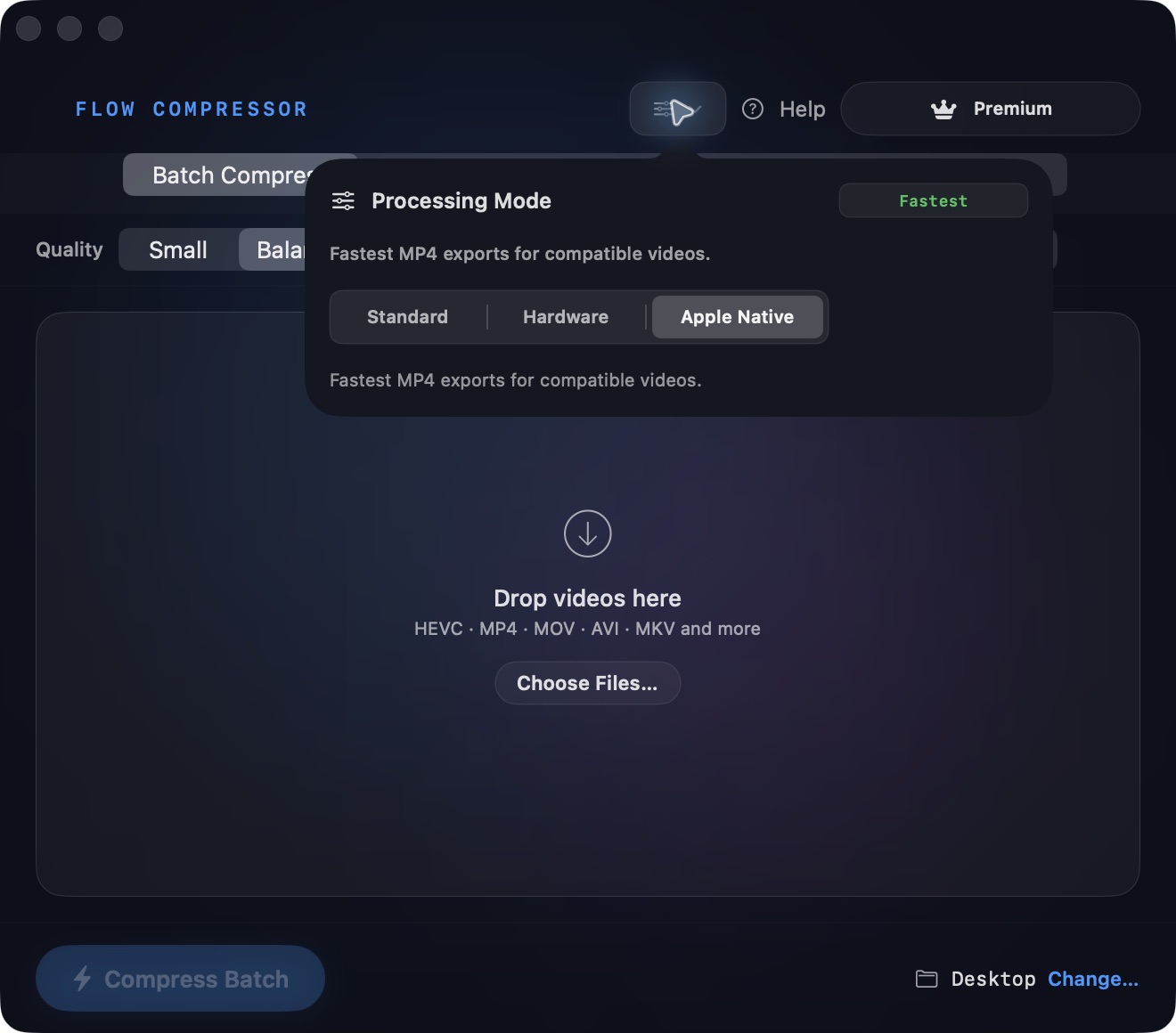
Apple Native Mode
FlowCompressor can use Apple AVFoundation and VideoToolbox for local, hardware-aware compression with clear fallback guidance for files that need the standard engine.
Prompt
"Take the selected PNG images and create a fast MP4 slideshow. Show each image for 0.1 seconds in filename order. Fit each image inside a 1920x1080 canvas with a black background so the full image remains visible. Export as a 1920x1080 H.264 MP4 with high quality."
Prompt
"Take my 4 selected videos and create a 2x2 grid comparison. Fit each full video inside its grid cell without cropping. Add large white labels "A", "B", "C", and "D" at the top center of each grid cell. Use font size 48. Slowdown the video total duration 20 seconds. Export as a 1920x1080 H.264 MP4."
Start with a small batch and check your result. For more detailed instructions, browse the online guide or open the searchable in-app guide from the toolbar or Help menu.
Drag videos into Batch Compress, choose Small, Balanced, or High quality, then select an output folder and start the batch. Version 2.4.0 includes format choices and size estimates. The 3.0 preview above adds Quick Edit, ProRes editing exports and more.
It samples short sections of the video to estimate savings for your chosen settings. Actual size can vary. “No savings expected” means those settings are unlikely to reduce the file. Try Small or a different engine.
Ordinary batch compression rejects outputs that exceed the original file size. Rejected files do not use a free export. Check the error details and choose Retry after changing settings. In 3.0, ProRes editing copies can be larger than their sources; the ordinary compression limit still applies.
Not yet. Version 3.0 has been submitted for review. The store download currently provides 2.4.0. Quick Edit, visible ProRes presets, preview packs, per-join merger transitions and optional PCC arrive with 3.0.
These workflows require a video track. Video exports can include audio, but standalone audio conversion is not provided. ProRes Proxy is a video editing format.
FlowCompressor requires Apple Silicon and macOS 14 or later. The optional PCC engine in 3.0 has higher requirements: macOS 27 or later, a supported Mac with Apple Intelligence available, internet and an available daily allowance.
Yes. Video compression, editing, and export run on your Mac. Local Gemma and on-device Apple Intelligence also run locally, and Auto never selects the cloud engine. In the upcoming 3.0 release on a supported Mac with macOS 27 or newer and Apple Intelligence available, you can explicitly choose Private Cloud Compute for AI questions and recipes. After you give permission, your typed request and numbered media types are sent to Apple; filenames, paths, and media files are not added automatically. Anything you type is sent as written. Private Cloud Compute needs an internet connection and has a daily allowance. Local model downloads, App Store purchases, and links also require an internet connection.
Contact support if you need a hand, or rate FlowCompressor on the App Store. These links are also available in the About window and Help menu.
Need help? Contact us at ou.salman@icloud.com. We are available to assist with any technical issues or feature requests.
Video compression, editing, and export are performed on your Mac. FlowCompressor does not upload your video, image, or audio files for processing.
Local Gemma and on-device Apple Intelligence process AI requests on your Mac. Auto uses these on-device engines and never selects Private Cloud Compute. In the upcoming 3.0 release, Private Cloud Compute is an optional online AI engine requiring macOS 27 or newer and a supported Mac with Apple Intelligence available. Choosing it asks your permission before sending your typed request and numbered media types to Apple. Filenames, file paths, media content, and local model settings are not added automatically. Your typed text is sent verbatim, including any names, paths, or other information you enter yourself.
Private Cloud Compute requires an internet connection and has a daily allowance. You can revoke this app's permission with Turn Off Cloud Access in AI settings. Local model downloads and App Store services also require an internet connection.