 NinjaScan
Scans that stay yours.
FastPrecisePrivateLike a real ninja.
NinjaScan turns paper and ID cards into tidy, named PDFs. Quietly, on your Mac, with no account and no tracking.
Download on theMac App StoreFive free scans, then $4.99 once. No subscription. Price may vary by country on the App Store.
Small app, sharp skills.
Everything a scanner should do, without the things it shouldn't.
-
1
Scan and tidy
Point, shoot, crop. Choose a look, put several scans on one page, and see the sheet before you share it.
-
2ID<<NINJA<<<<
<<<<<<<<<<<<ID cards at real size
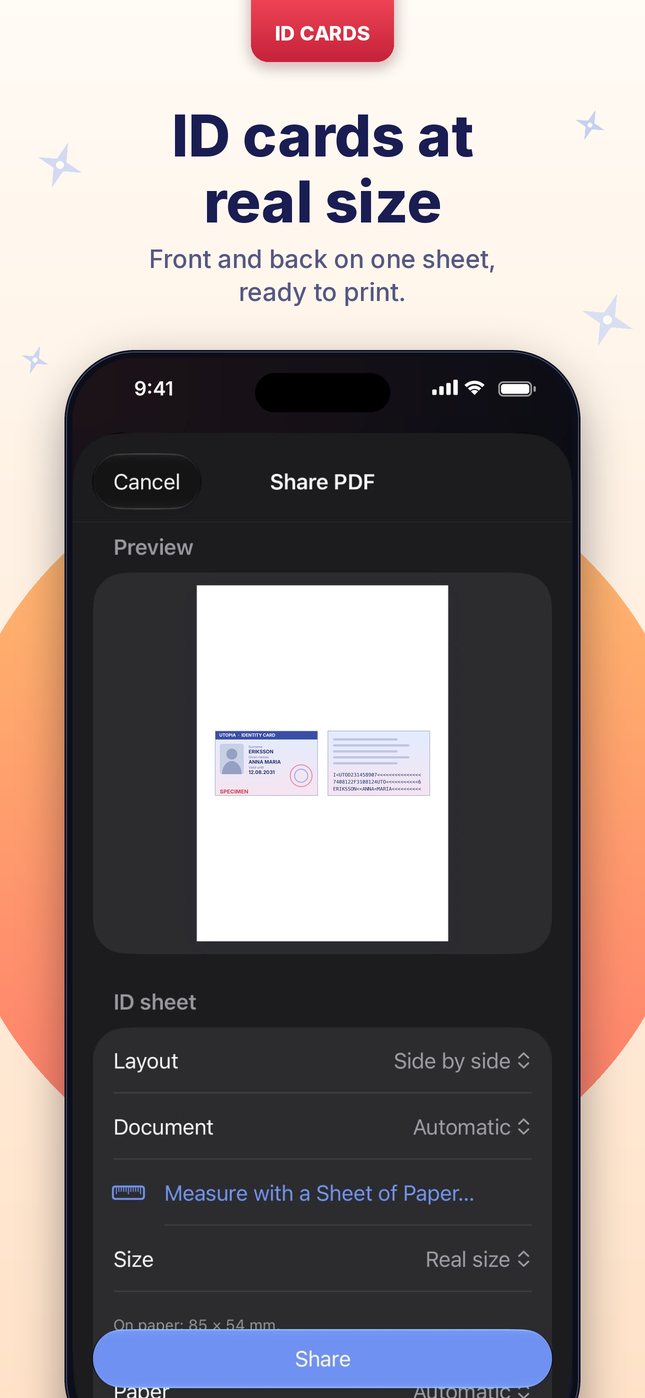
One side or both on one sheet, printed at the card's true size. It reads the expiry date and offers a reminder.
Knows cards in 16 languagesEnglishFrançaisDeutschEspañolItalianoTürkçeNederlandsPortuguêsPolskiRomânăSvenskaDanskNorskSuomiČeštinaMagyar
-
Scan 47Electricity bill3
Names itself
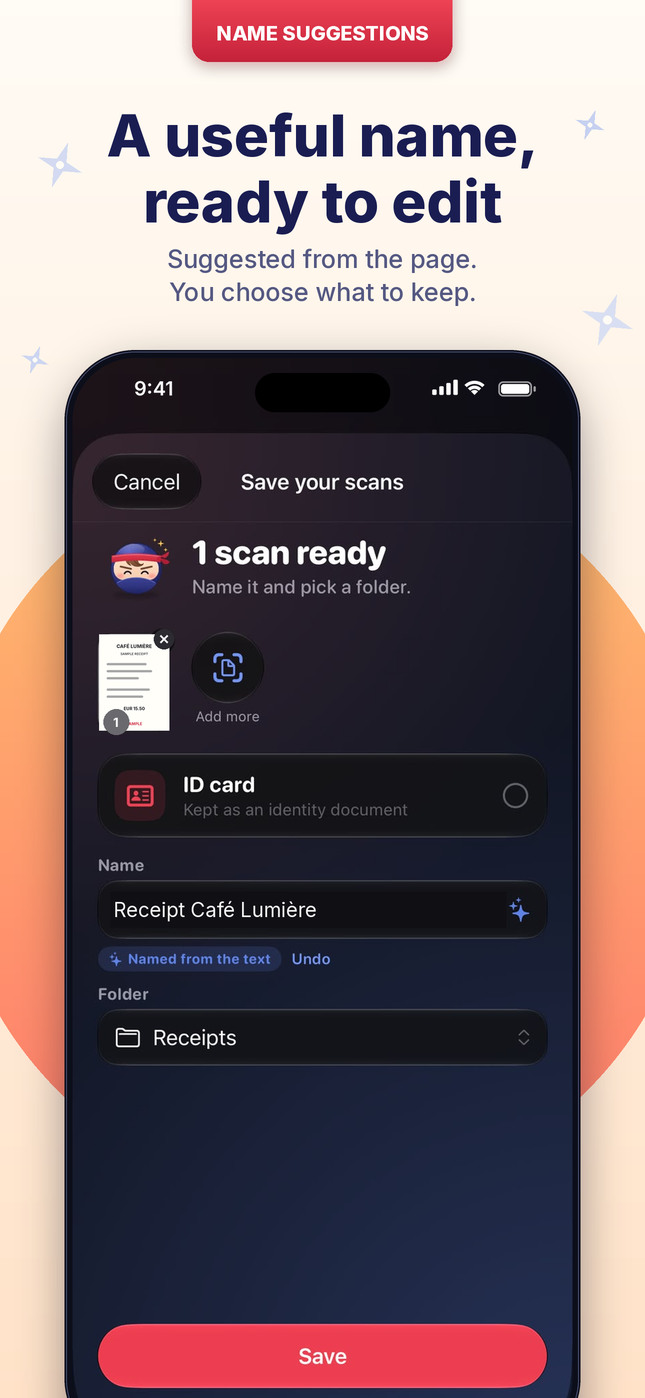
Reads the page to suggest a name and a folder, so nothing ends up called "Scan 47".
-
4
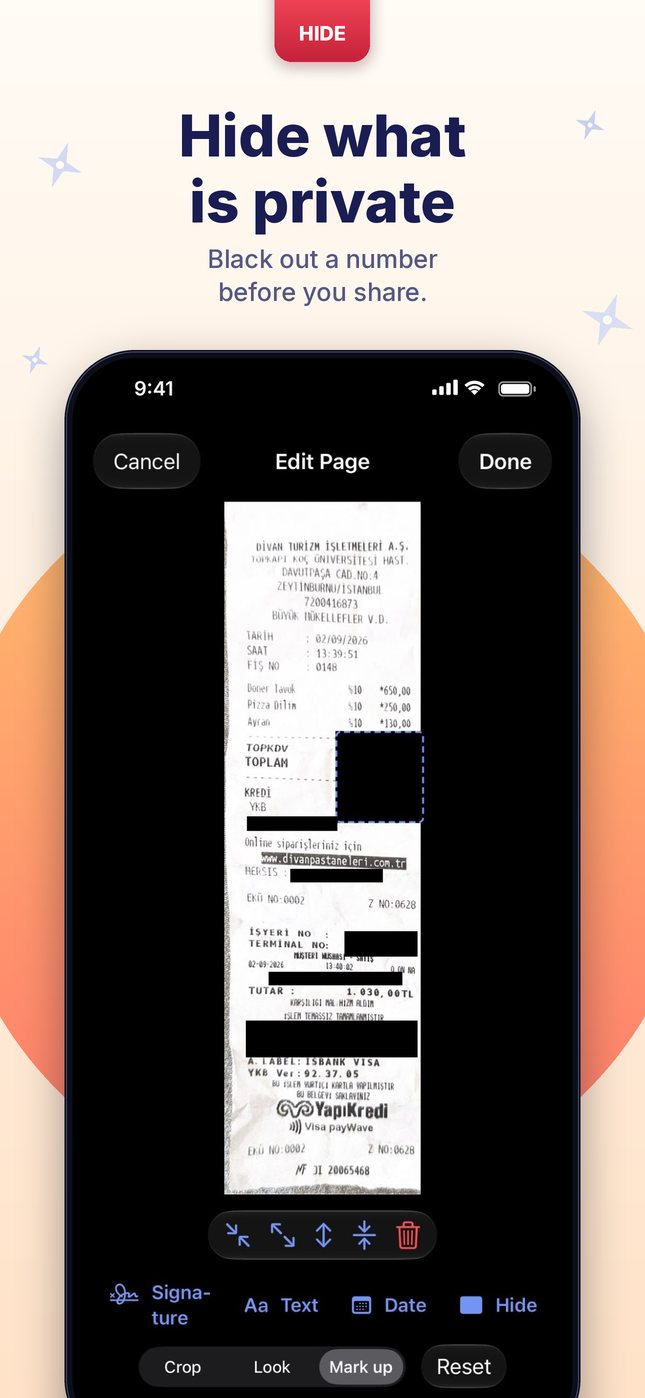
Hide what is private
Black out an account number or an address before you send a page. The shared file holds the bar, not what is under it.
-
5
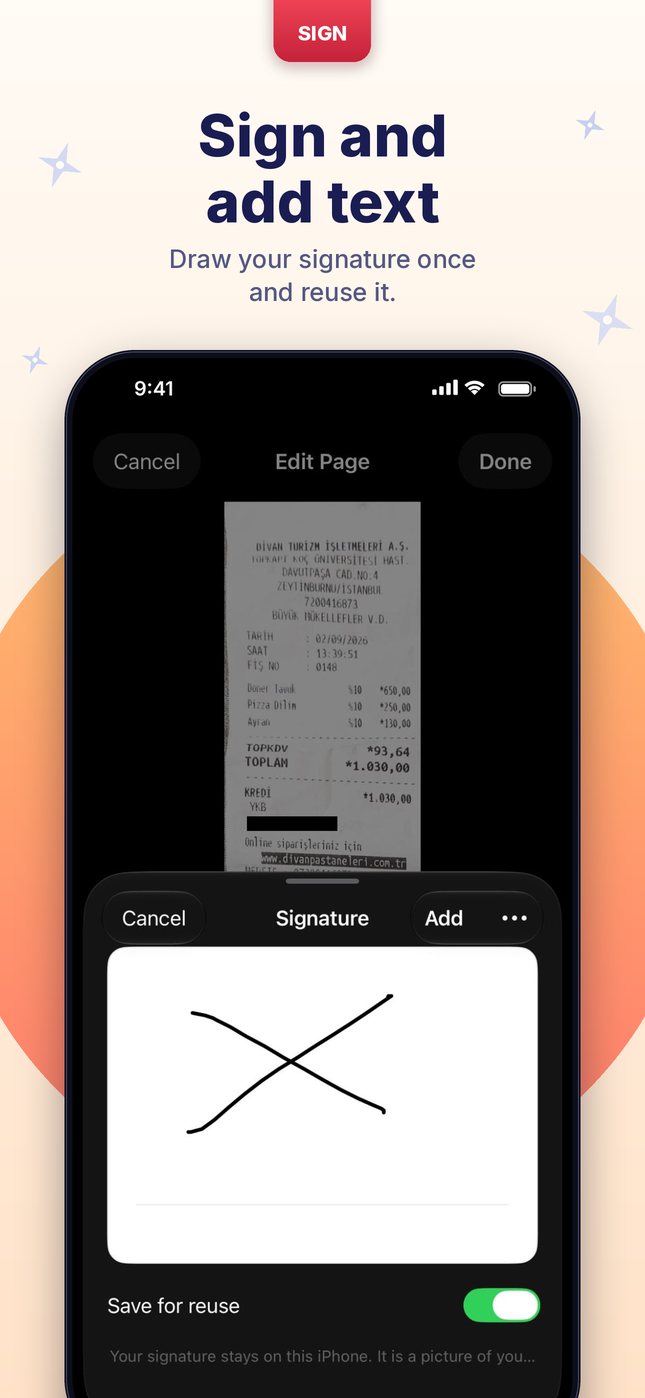
Sign and add text
Draw your signature once and reuse it. Add text or today's date, straight from the document.
-
6
Locked when you want
Touch ID or your Mac password for the app. Passwords and watermarks for the PDFs you send out.
-
7
Your own iCloud
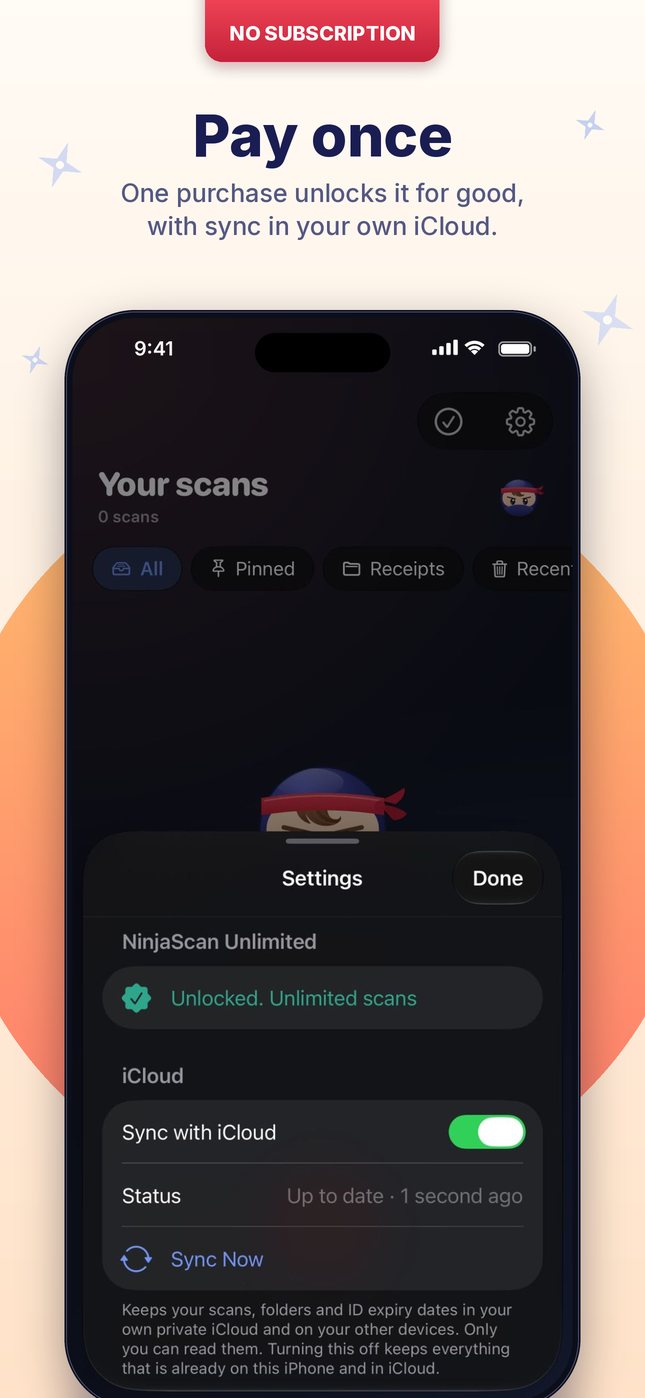
Optional sync between your devices through your private iCloud. Nobody else holds a copy.
-
$4.998
Pay once
Five scans to try it. After that, $4.99 once unlocks it for good. No subscription. The App Store shows the price in your currency.
A look inside.
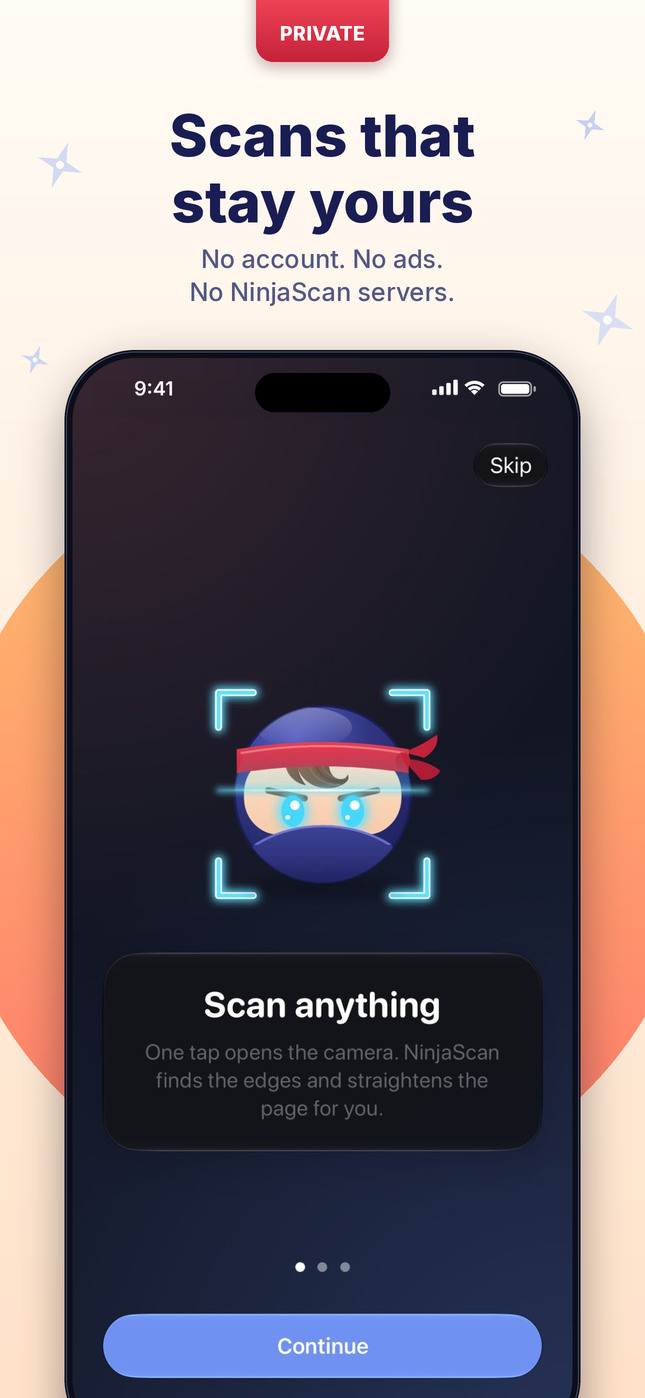
A preview of the upcoming iPhone app. It is not yet available. Swipe sideways to see all six screens.
Privacy policy
The short version: we collect nothing. Your scans never reach us.
What we collect
Nothing. NinjaScan has no account, no analytics, no advertising and no third-party code that reports on you. The app does not contact any server run by us, because we do not run one.
Where your scans live
- On your device. Scans, names, folders and the text read from your pages are stored in the app on your device.
- In your own iCloud, if you turn sync on. Sync uses your private iCloud database, which belongs to your Apple account. We cannot see or open it. Apple's handling of that data is described in Apple's privacy policy.
What the app uses on your device
- Continuity Camera, to scan documents using a nearby compatible iPhone or iPad. Pictures go only into your scans.
- Photos and Files, only for the items you pick or share into the app.
- Text and ID recognition, done on the device, with Apple Intelligence where your device supports it. It is used to suggest names, to search, and to spot ID cards. Nothing is sent anywhere for this.
- Touch ID or your Mac password, if you lock the Mac app. macOS does the check and only tells the app yes or no.
- Notifications, for the expiry reminders you set. They are scheduled on the device.
Purchases
The one-time unlock is sold by Apple through the App Store. We never see your name, card or Apple account. The app keeps a count of your free scans and whether it is unlocked, on your device.
Crash reports
If you have agreed in your system settings to share analytics with app developers, Apple may send us anonymous crash reports. They contain no scans and nothing that identifies you.
Children
The app collects no data from anyone, including children.
Deleting your data
Delete a scan and it goes to Recently Deleted, then away for good. Deleting the app removes what is on the device. With sync on, you can also remove NinjaScan's data under Settings → your name → iCloud → Manage Storage.
Changes and contact
If this policy changes, the new version will be posted here with a new date. Questions: ou.salman@icloud.com.
Last updated: 15 October 2026
Support
Stuck, or found something odd? A real person reads every message.
Write to us
Tell us your Mac model, macOS version and what happened. A screenshot helps, but please hide anything private.
ou.salman@icloud.com We usually reply within a few days.Which versions are available?
NinjaScan is available now on the Mac App Store for macOS 15 or later. The iPhone and iPad apps are not yet available. You can already scan into the Mac app using a compatible nearby iPhone or iPad with Continuity Camera; NinjaScan does not need to be installed on that device. Once the iPhone app launches, your scans will stay fully in sync between iPhone and Mac through your own private iCloud.
How many scans are free?
Five. One scan is one saved document, however many pages it has. After that, a one-time purchase of $4.99 unlocks unlimited scans. That is the US price; the App Store shows the price for your country and currency. There is no subscription.
I bought the unlock on another Mac. How do I get it back?
Open the unlock screen and tap Restore Purchase while signed in with the same Apple account. You will not be charged again.
How do I print an ID card at its real size?
Scan the front, or the front and the back, save it as an ID card, then share. The ID sheet is set to real size by default; in your printer's options choose 100% or "Actual size", not "Fit to page".
How do I sign a page or add text?
Open the document and tap Sign & Text. You can draw a signature, type text or add today's date, then drag and resize it. Your signature is kept for next time.
How do I hide part of a page?
Tap Sign & Text, then Hide, and drag the black bar over what you want covered. Everything you share has the bar painted in. The original stays in the app, so you can tap the bar and remove it later.
How do I get a reminder before my ID expires?
When you save an ID, NinjaScan reads the expiry date and offers a reminder 30 days before. You can also set it from the ID's menu under Expiry Date. The reminder never shows the document's name.
Which ID cards does it recognise?
Passports and most modern ID cards from any country, through the machine-readable lines printed on them. Cards without those lines, such as many driving licences, are recognised and named in 16 languages: English, French, German, Spanish, Italian, Turkish, Dutch, Portuguese, Polish, Romanian, Swedish, Danish, Norwegian, Finnish, Czech and Hungarian. For anything else, choose ID card yourself when you save.
My card was not recognised as an ID.
Open the document's menu and choose Mark as ID Card, or pick ID card in the save sheet when you scan it.
My scans do not show up on my other device.
Check that both devices use the same Apple account, that iCloud is on for NinjaScan, and that sync is on in the app's settings. Then tap Sync Now.
I deleted a scan by mistake.
Look in Recently Deleted from the home screen filters. You can put it back from there.
How do I get a refund?
Refunds are handled by Apple. Go to reportaproblem.apple.com, sign in and choose the purchase.